
Best WordPress MCP Plugins: How to Connect Claude and AI Agents to WordPress
A practical guide to WordPress MCP plugins: how Novamira, Easy MCP AI, EMCP Tools, Elementor MCP and other options differ, and how to connect them to Claude safely.
Connecting Claude or another AI assistant to WordPress turns a chat window into a working tool. Instead of copying text back and forth, you can ask the assistant to list your latest drafts, update a page, fill in SEO fields or inspect a layout, and it does the work through your site’s own permissions. What makes that possible is a WordPress MCP plugin.
There are now several of them, and they are very different. Some are careful content editors with approvals and undo. Others are full developer tools that can run PHP. One is built into Elementor. This guide compares the WordPress MCP plugins worth knowing, explains who each one suits, and walks through installing and connecting the main options to Claude Desktop, Claude Code and Claude on the web.
What Is WordPress MCP?
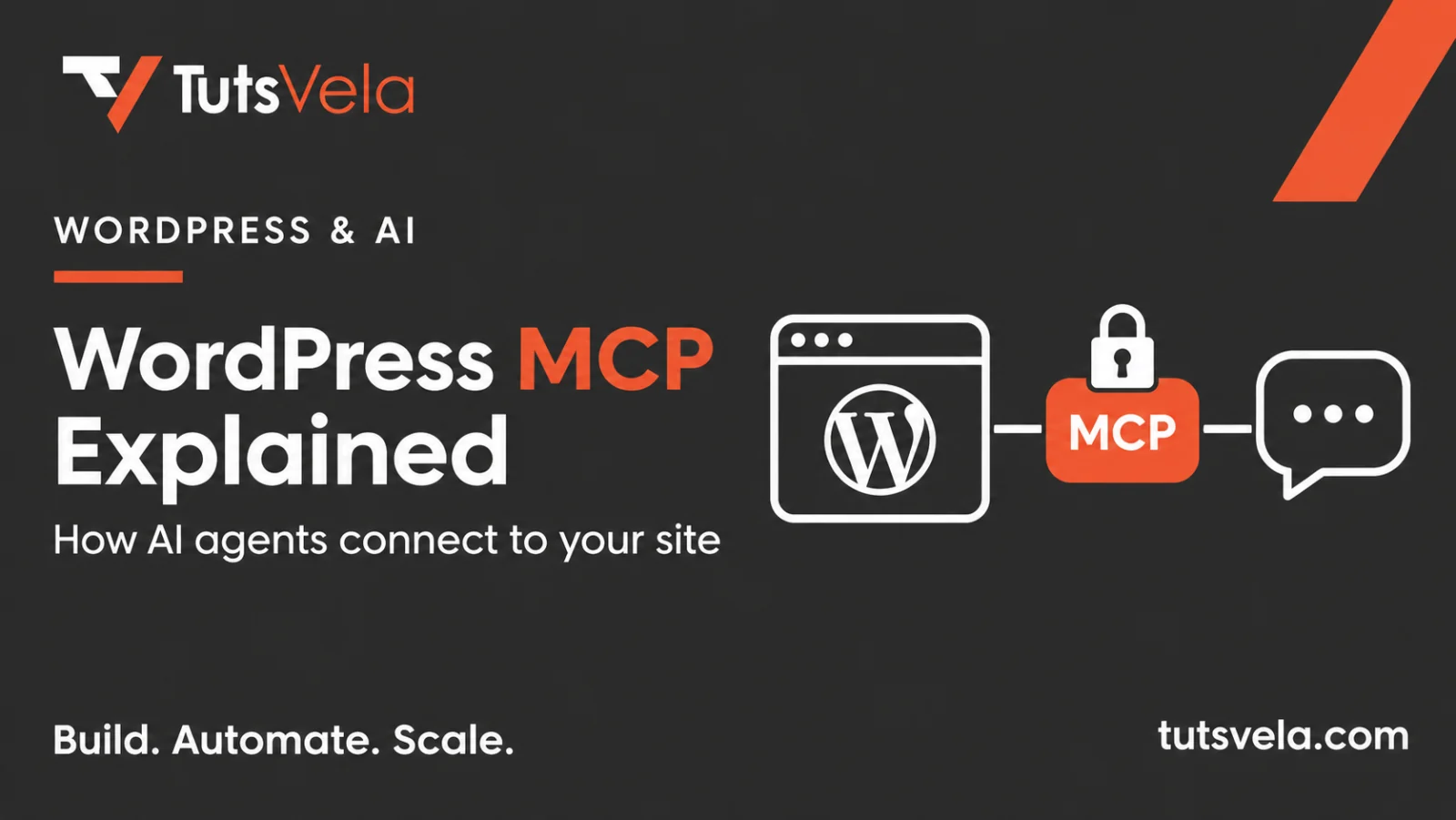
MCP, the Model Context Protocol, is an open standard that lets AI apps use outside tools. A WordPress MCP plugin turns your site into an MCP server: it offers a list of tools, such as “list posts” or “update a page”, and an AI client like Claude can discover those tools and call them.
Two things stay the same whichever plugin you choose. The AI always acts as a real WordPress user, so it can only do what that user’s role allows. And the plugin decides which tools exist in the first place. That is why the choice of plugin matters more than the choice of AI model.
A WordPress MCP plugin is the bridge that lets an AI assistant sign in to your site and use a defined set of tools, with the permissions you give it.
What Can You Actually Do with WordPress MCP Plugins?
The answer depends on the tools a plugin provides, but these are the jobs most of them are built for:
Manage content
List, create and edit posts and pages, usually as drafts first, and update categories, tags and media details.
Edit page layouts
Change blocks in the block editor, and with some plugins edit Elementor, Divi or other builder layouts.
Audit a site
Find pages missing meta descriptions, check broken content patterns or summarise what a site contains.
Work with SEO fields
Read and update Rank Math or Yoast titles and descriptions where the plugin supports them.
Develop faster
Read and edit theme or plugin files, run WP-CLI or PHP on a staging site with developer-focused plugins.
Automate routine tasks
Combine several steps, such as creating a draft, assigning a category and adding a featured image.
Write access is where the plugins differ most. A tool that can create a draft is useful; a tool that can run PHP can change anything on the server. Keep that difference in mind as you read the comparisons below.
Best WordPress MCP Plugins Compared
These are the eight options covered in this guide. The first four get full setup tutorials; the others are strong alternatives with a shorter overview. There is no single best WordPress MCP plugin: the right one depends on whether you want safe content editing, page builder control or developer access.
|
Plugin |
Developer |
Best for |
Price |
How Claude connects |
Builder support |
|---|---|---|---|---|---|
|
Novamira |
Dynamic.ooo |
Developers on staging |
Free plugin; Pro paid |
OAuth connector, or Application Password |
Block editor; more builders in Pro |
|
Easy MCP AI |
Themeisle |
Content teams and site owners |
Free |
OAuth connector, or API token |
Block editor, Elementor, Divi, Breakdance, WPBakery, Flatsome |
|
EMCP Tools |
MSR Builds |
Page building across builders |
Lite and GitHub edition free; Pro paid |
OAuth, Application Password or WP-CLI |
Elementor, block editor and other builders |
|
Elementor MCP |
Elementor |
Building Elementor V4 pages |
Included in Elementor 4.3+; some tools need Pro |
Generated setup prompt with Application Password |
Elementor V4 (atomic) only |
|
AI Engine |
Meow Apps |
All-in-one AI suite users |
MCP in free plugin; Pro adds tool sets |
OAuth connector, or Bearer token |
Divi, Avada, WPBakery, SiteOrigin; Elementor in Pro |
|
WPVibe |
SeedProd |
Fastest Claude setup |
Free plugin with daily call limit; paid plans |
Hosted relay connector |
Elementor, Bricks, Breakdance, Beaver Builder, Divi |
|
Royal MCP |
Royal Plugins |
Self-hosted, free, with undo |
Free |
OAuth connector, API key or Application Password |
Elementor, Divi |
|
Secure MCP Server |
miniOrange |
Role-based governance |
Free with daily limit; paid plans |
Vendor gateway with OAuth |
Elementor, Kadence Blocks, Divi (Pro) |
|
Plugin |
Content editing |
Developer access |
Safety controls |
Main limitation |
|---|---|---|---|---|
|
Novamira |
Through PHP or WP-CLI in the free plugin; content tools in Pro |
PHP execution, files, database, WP-CLI |
Abilities switch, per-ability toggles, connection list |
Built for development and staging, not live sites |
|
Easy MCP AI |
Posts, pages, blocks, menus, media, SEO fields |
WP-CLI, REST delete and plugin install tools, off by default |
Per-tool approval, audit log, change history |
Large tool list to review before connecting |
|
EMCP Tools |
Content and page layouts |
Files, database and plugins in GitHub and Pro editions |
Per-tool switches, history with undo |
Tool counts and editions can be confusing |
|
Elementor MCP |
Elementor V4 pages and Theme Builder parts |
None documented |
Drafts, conflict detection, one switch to turn off |
V4 atomic pages only; requirements vary by doc |
|
AI Engine |
Posts, pages, media, SEO fields |
No PHP execution by design |
Delete approval, 30-day undo (developer says) |
MCP is one module in a large AI plugin |
|
WPVibe |
Posts, pages, media, builders |
Allowlisted WP-CLI style commands |
In-chat approvals, approval log |
Requests pass through a third-party relay |
|
Royal MCP |
Posts, pages, blocks, menus |
Allowlisted options, error log |
Access levels, activity log, 72-hour undo |
Newer project with few reviews |
|
Secure MCP Server |
Posts, pages, blocks, builders |
Governed REST access per role |
Role mapping, audit log; approvals in Business plan |
Gateway and daily quotas |
Where a capability is described here, it comes from the developer’s own documentation. Features such as undo and approvals are worth testing on a staging copy before you rely on them.
Novamira: Installation, Connection and Use Cases
Novamira, from the Italian developer Dynamic.ooo, is a developer tool rather than a content editor. Its free plugin gives an AI agent abilities to run PHP, read and write files, use the database and run WP-CLI. That makes it powerful for building and debugging, and it is why the developer states plainly that it is meant for development and staging sites, with backups.
Before you install Novamira
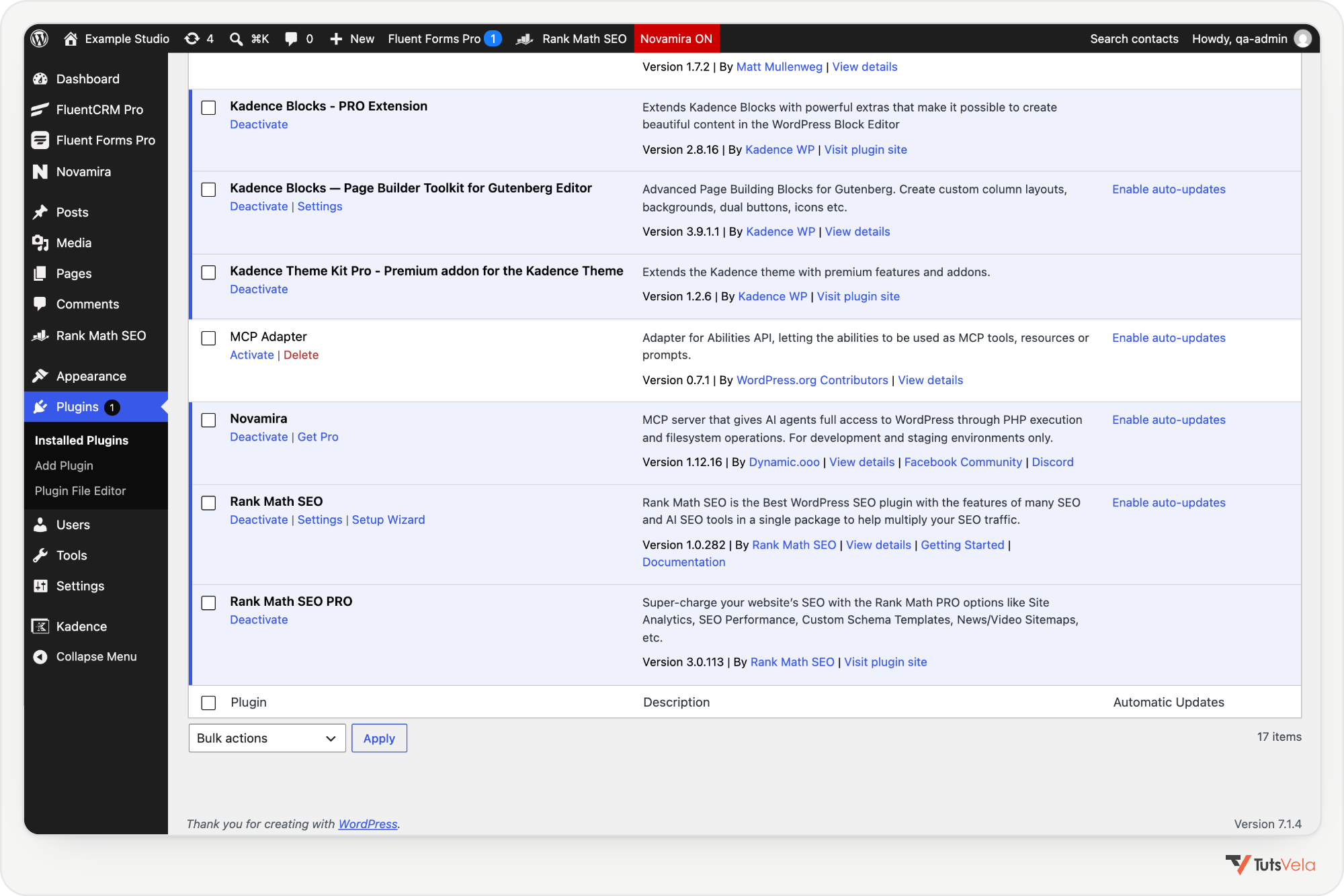
Novamira is not in the WordPress.org directory. Download the release ZIP from novamira.ai or its GitHub releases, not GitHub’s automatic source archive, which lacks bundled dependencies. The plugin already includes the official MCP Adapter, so you do not need to install it separately.
Install and enable Novamira
1. Download the latest ZIP, then go to Plugins, Add New Plugin, Upload Plugin, choose the file, click Install Now and Activate Plugin.
2. Open Novamira, Configuration. Under Enable AI Abilities, tick Turn on AI Abilities for this site and click Save Settings. Nothing is exposed until you do this. While abilities are on, a red “Novamira ON” reminder stays in the admin bar, and unticking the box stops every connection immediately.
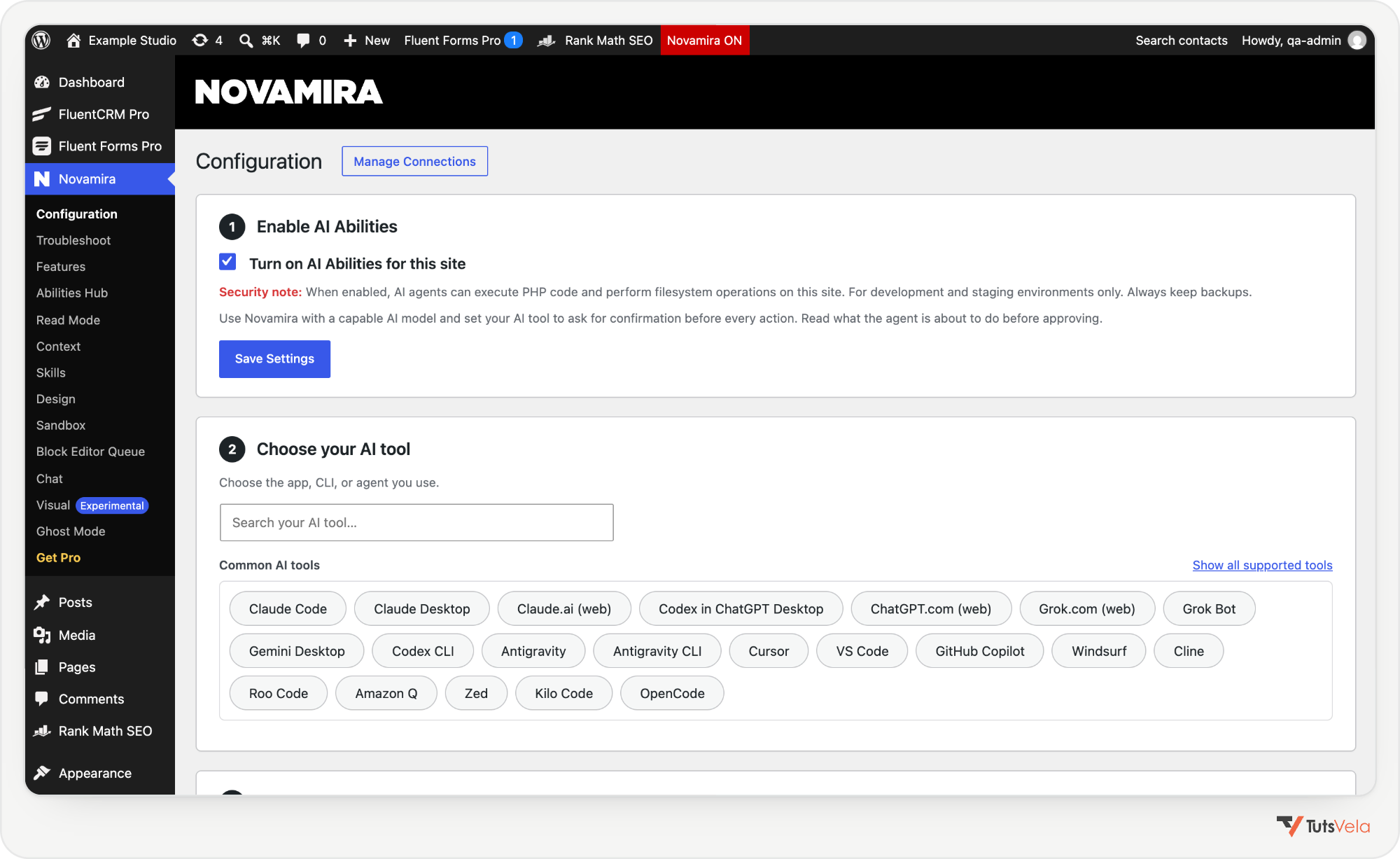
3. Still on the Configuration page, choose your AI tool and a connection route. OAuth is the simplest for Claude. The page generates the exact URL or snippet for your site. If you want to limit what the agent can use, Novamira, Abilities Hub lists every ability with its own on and off switch.
Connect Novamira to Claude
Claude Desktop and Claude on the web (OAuth)
Claude Code (OAuth)
Run this command with your own site address, then approve the sign-in when the browser opens:
claude mcp add novamira-your-site --transport http https://your-site.com/wp-json/mcp/novamira-oauthApplication Password route
If your host blocks OAuth paths, create an Application Password on the Configuration page (it is shown once) and use the password endpoint, which has no -oauth suffix. Novamira documents this configuration for clients that run the WordPress proxy through Node.js:
{
  "mcpServers": {
    "novamira-your-site": {
      "command": "npx",
      "args": ["-y", "@automattic/mcp-wordpress-remote@latest"],
      "env": {
        "WP_API_URL": "https://your-site.com/wp-json/mcp/novamira",
        "WP_API_USERNAME": "your-wordpress-username",
        "WP_API_PASSWORD": "your-application-password"
      }
    }
  }
}
Check the Novamira connection
A working connection shows three tools in your client: Discover Abilities, Get Ability Info and Execute Ability. For a safe first request, ask: “Discover the abilities available on this site and describe what each one does. Do not run any of them.” The free plugin has no dedicated read-only tool for listing posts, so avoid asking it to list content on a first test: it would have to use PHP or WP-CLI, which can also write. Novamira Pro adds read abilities for posts and a Read Mode.
Novamira use cases and safety
Novamira suits developers who want an agent to scaffold a plugin, fix a template, inspect the database or run WP-CLI on a staging site. Code that the agent writes is placed in a sandbox folder and loaded through a must-use loader. The developer is clear that the sandbox is a convenience, not a security boundary, because Execute PHP can still do anything PHP can.
Easy MCP AI: Installation, Connection and Use Cases
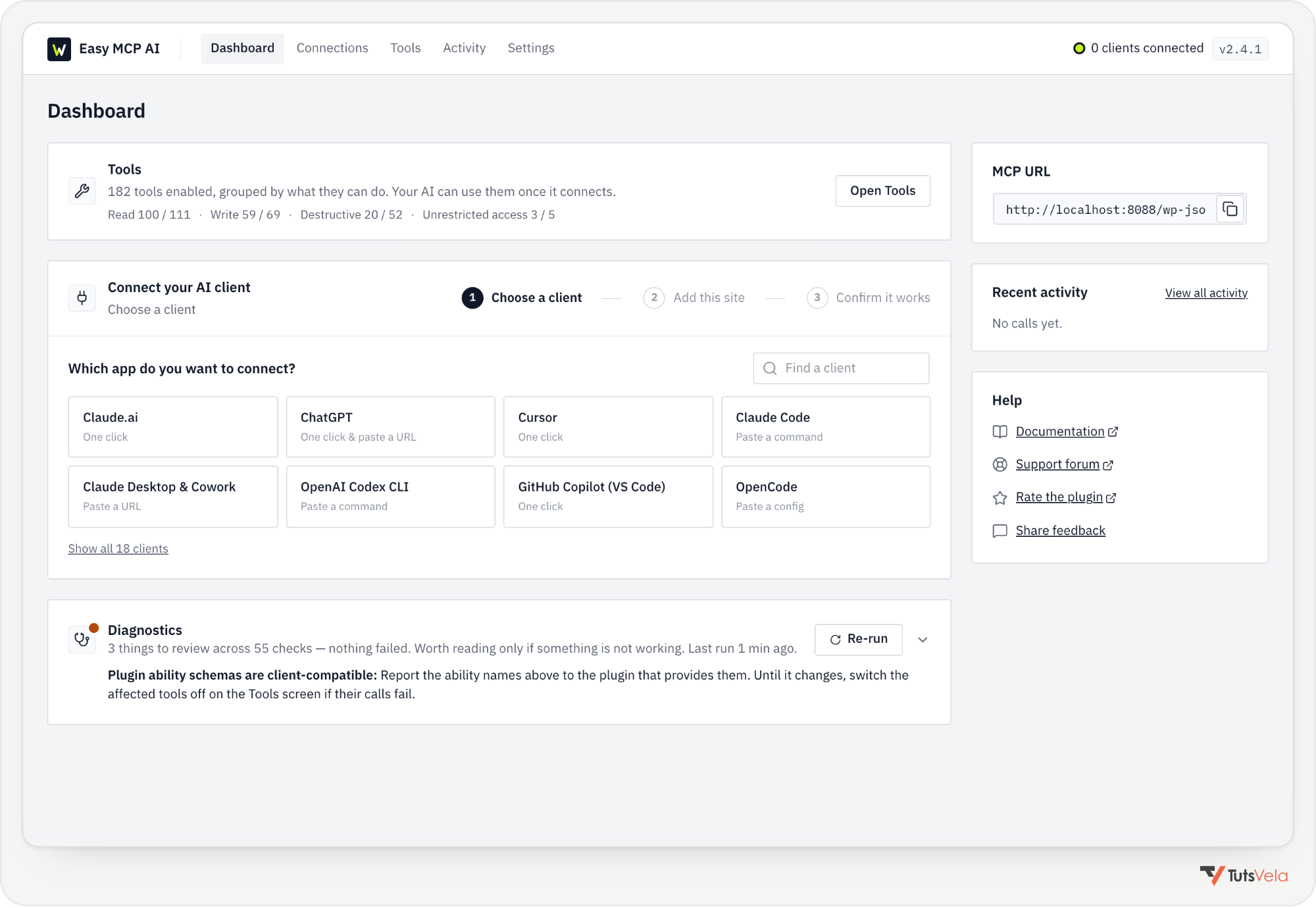
Easy MCP AI, now maintained by Themeisle, is the most approachable option for site owners and content teams. It is free on WordPress.org, runs its own MCP server inside WordPress without the official adapter, and wraps its large tool list in sensible controls: per-tool switches, optional approvals, an audit log and a change history.
Before you install Easy MCP AI
Install and configure Easy MCP AI
1. Go to Plugins, Add New Plugin, search for “Easy MCP AI”, then install and activate it. The MCP server is active straight away; there is no separate switch to turn it on.
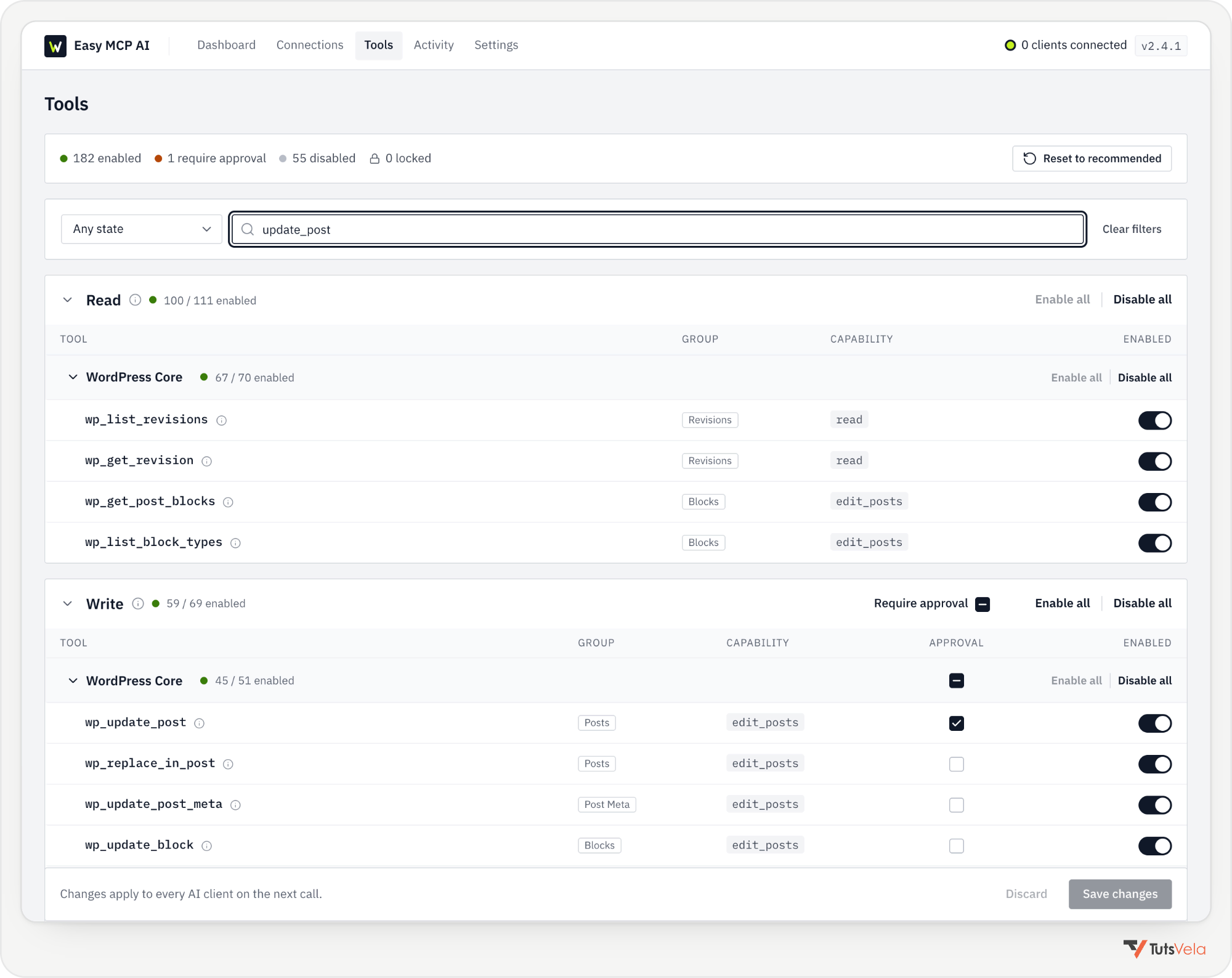
2. Open Easy MCP AI, Tools and review what is switched on. Risky tools, such as WP-CLI, plugin installation and email sending, are off by default. For any tool that changes content, you can turn on Require approval, so the AI must wait for your confirmation. An approval is used once and expires after 15 minutes.
3. Decide how clients will sign in. OAuth is on by default and suits Claude, ChatGPT and Cursor. For scripts and headless clients, create an API token under Easy MCP AI, Connections, choose its user and tools, and copy it straight away: it is shown once.
Connect Easy MCP AI to Claude
The server address is https://yoursite.com/wp-json/easy-mcp-ai/v1/mcp. The dashboard also has one-click buttons that pre-fill it for Claude and Cursor.
Claude on the web, Claude Desktop and Cowork (OAuth)
Claude Code (OAuth)
claude mcp add --transport http wordpress https://yoursite.com/wp-json/easy-mcp-ai/v1/mcpThen run /mcp in Claude Code, select wordpress, choose Authenticate and approve in the browser. To use an API token instead, add --header "Authorization: Bearer YOUR_API_TOKEN" to the command. If you store the token in a project .mcp.json file, keep that file out of version control.
Claude Desktop with an API token
If you prefer a token over OAuth, open Settings, Developer, Edit Config and add this entry, then restart Claude Desktop. It uses the mcp-remote bridge, which needs Node.js:
{
  "mcpServers": {
    "wordpress": {
      "command": "npx",
      "args": [
        "mcp-remote",
        "https://yoursite.com/wp-json/easy-mcp-ai/v1/mcp",
        "--header",
        "Authorization: Bearer YOUR_API_TOKEN"
      ]
    }
  }
}
Run a safe first test
Easy MCP AI has a read-only wp_list_posts tool, so a good first request is: “List the five most recent WordPress posts and show their publication status.” You should get five posts with titles and statuses such as publish or draft. Drafts by other authors only appear if the connected user is allowed to read them.
Easy MCP AI use cases and controls
It is a good fit for editorial work: drafting and updating posts, editing blocks, managing menus and media, and working with Rank Math, Yoast, ACF or WooCommerce data. Its layout tools can edit Elementor, Divi, Breakdance, WPBakery and Flatsome pages, with structural changes supported for Elementor, Divi and Flatsome. Kadence Blocks are not mentioned in its documentation, so they would be handled as ordinary blocks.
EMCP Tools and Elementor MCP
“Elementor MCP” can mean two different products, and tutorials often mix them up:
EMCP Tools: installation and connection
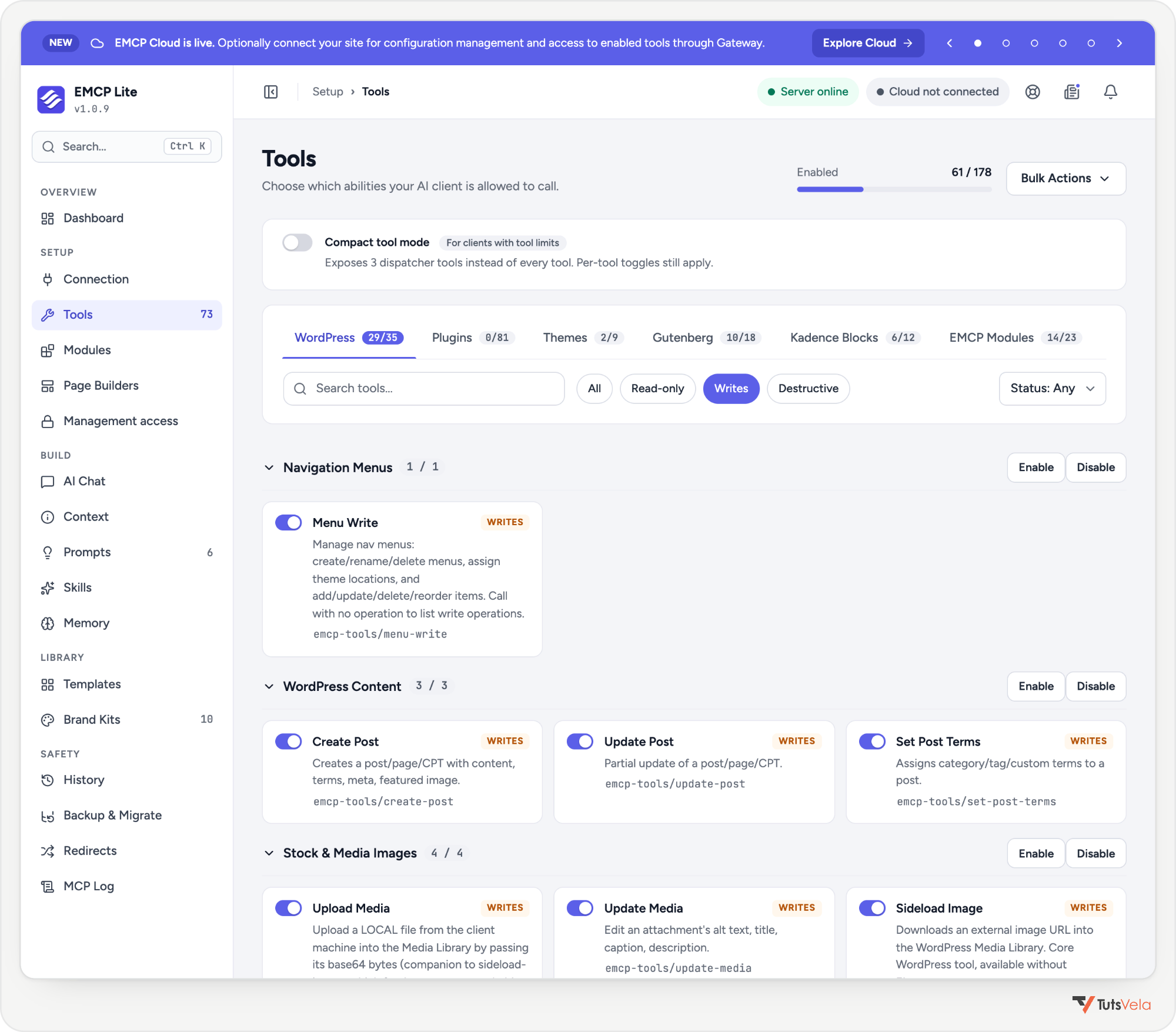
EMCP Tools comes in three editions: EMCP Lite on WordPress.org, a fuller free edition on GitHub, and a paid Pro edition. Activate only one edition at a time. It needs WordPress 6.9 or later and PHP 8.1 or later; Elementor 3.20 or later is only needed for the Elementor tools.
Install EMCP Lite
Connect EMCP to Claude
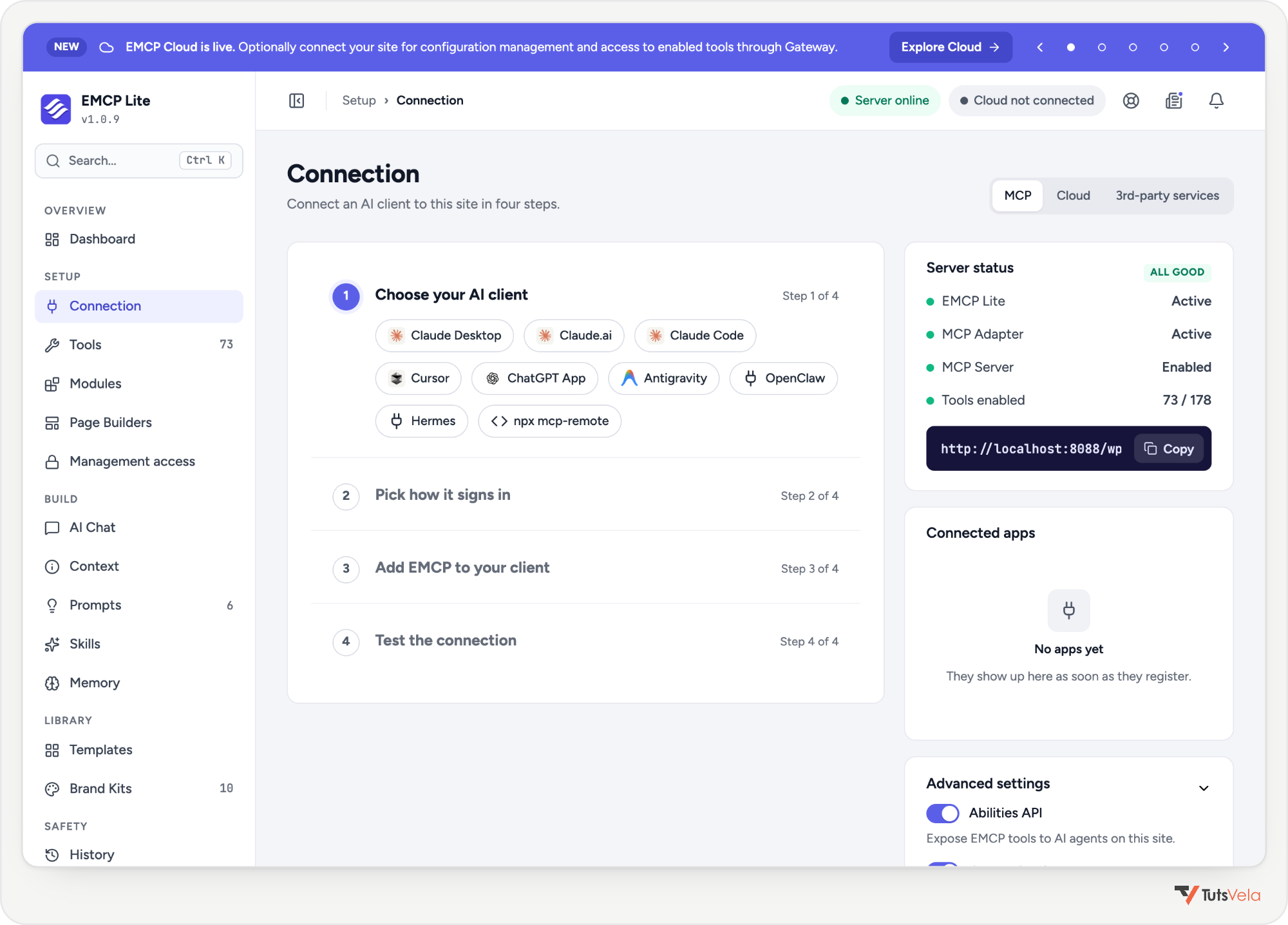
The Connection wizard walks through four steps: choose the client, choose the sign-in method, copy the command or settings, and wait for the client’s first call. With OAuth, which is the recommended method on HTTPS sites, only administrators can approve a connection.
Claude Code: run the command below, approve the connection in the browser, then check it with claude mcp list.
claude mcp add emcp-tools --transport http https://your-site.com/wp-json/mcp/emcp-tools-serverClaude Desktop and Claude on the web: open Customize, Connectors, select + Add, choose Add custom connector, name it emcp-tools, paste the server address, leave the OAuth Client ID and Secret empty, save, and approve from your WordPress login. The wizard also offers a one-click .mcpb bundle for Claude Desktop based on an Application Password; delete the downloaded file after importing it, because it contains the password.
First test: EMCP documents read tools such as content search and page snapshots. Ask Claude to “show which EMCP tools are enabled, then describe the structure of the home page without changing anything”, and confirm that no write tools were used. Its documented safety features include a History log with undo and a required confirmation on destructive tools.
Elementor MCP: the official integration
Elementor MCP connects an AI tool directly to the Elementor editor through WordPress Abilities. Elementor documents it for building pages with V4 atomic elements, Theme Builder parts such as headers and footers, global classes and variables, and dynamic data. It only works with V4 atomic layouts; Elementor says support for V3 widget layouts is coming. Elementor says generated content is saved as a draft, and that it detects when you and the AI edit the same page.
Connect Elementor MCP to Claude
Elementor does not publish the server address or configuration keys separately; they are inside the generated prompt. Treat that prompt like a password.
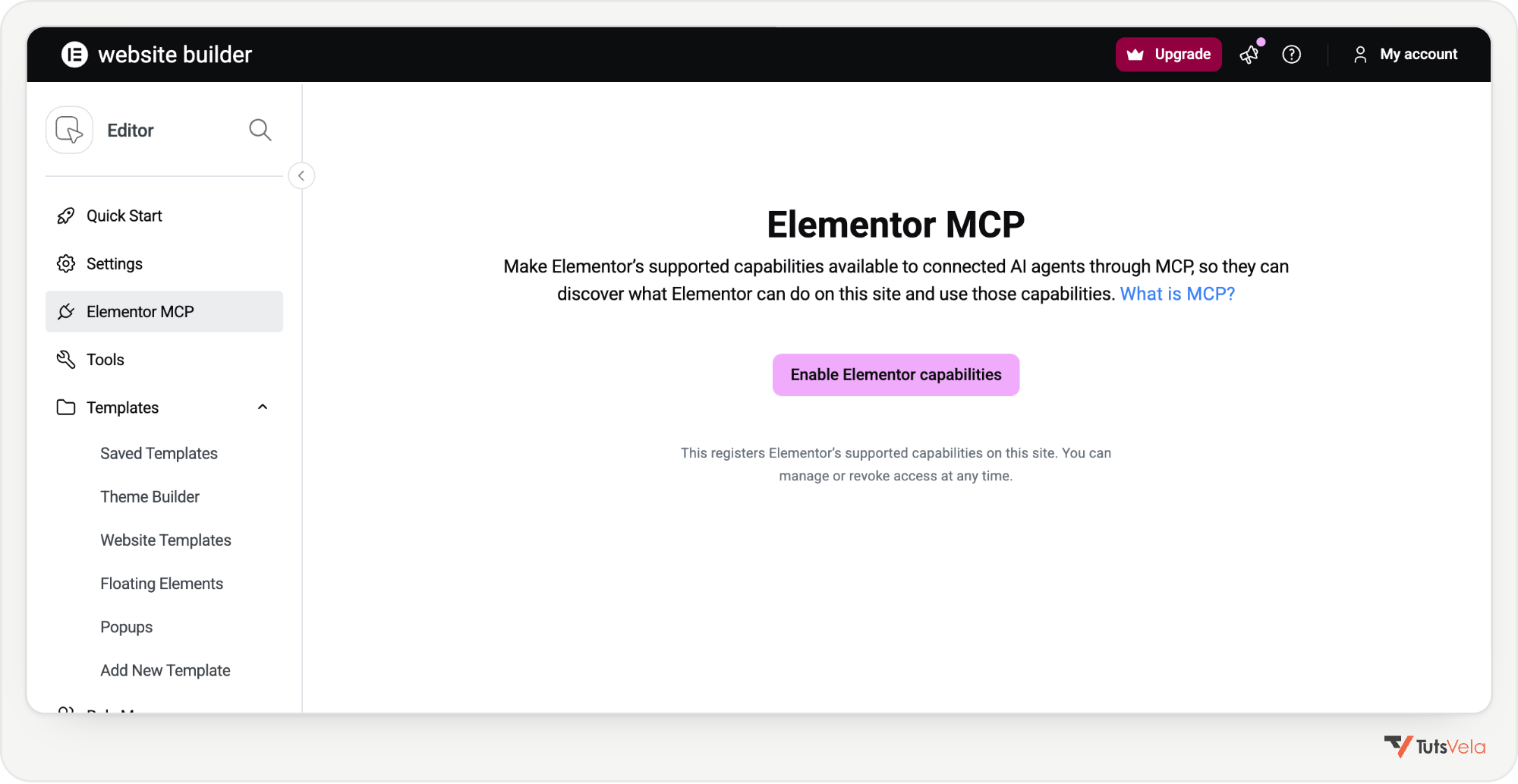
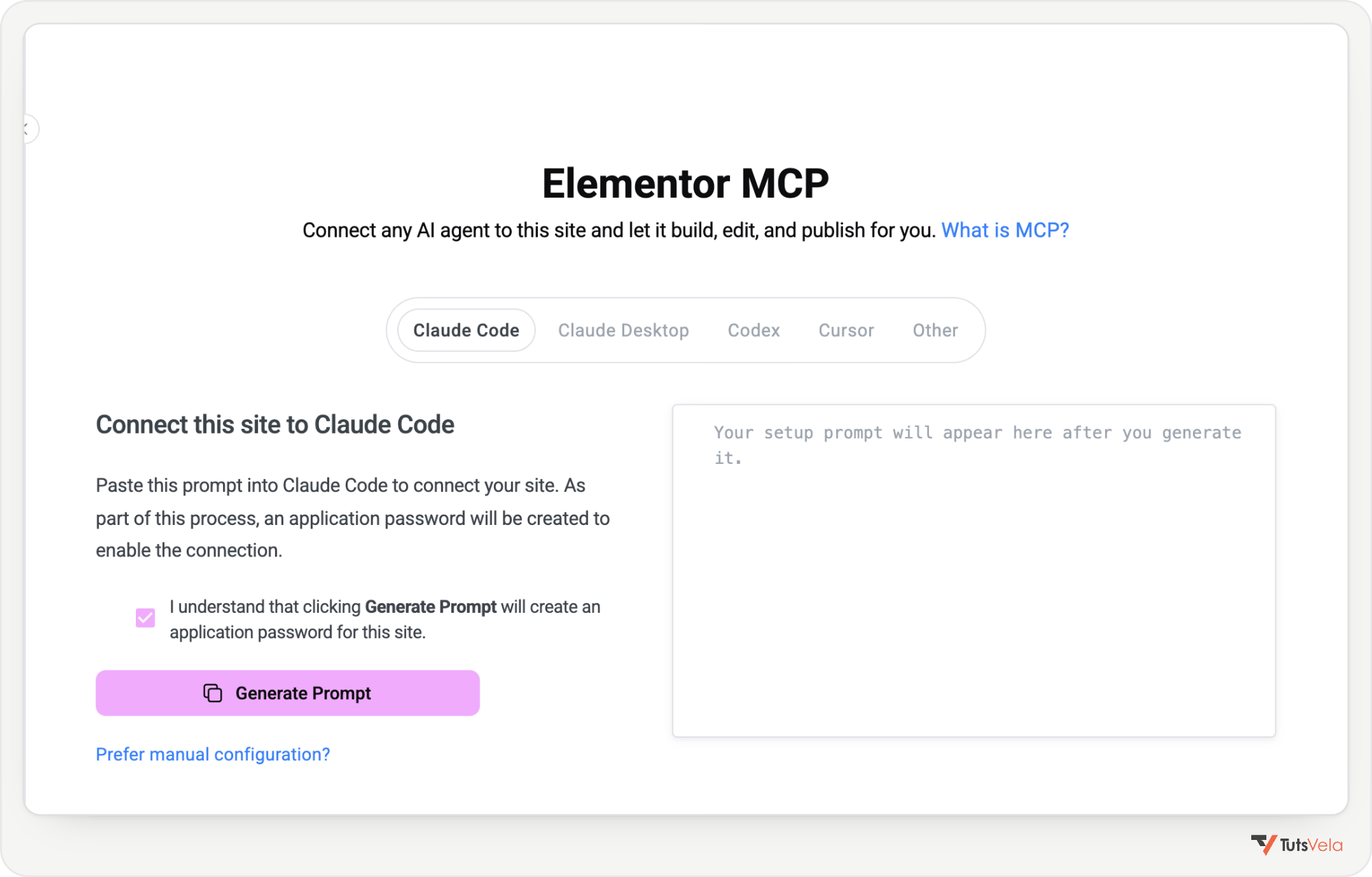
To remove access for one client, revoke its Application Password in Users, Profile (it is named after Elementor MCP and the client). To stop all clients, use Turn off MCP access on the Elementor MCP screen. For wider WordPress tasks, such as other plugins’ abilities or bulk actions, Elementor points to its separate free Angie plugin.
|
EMCP Tools |
Elementor MCP |
|
|---|---|---|
|
Developer |
MSR Builds (featured by WP Academy) |
Elementor |
|
Delivery |
Separate plugin: Lite, GitHub and Pro editions |
Built into Elementor 4.3.0 and later |
|
Elementor required |
No, only for its Elementor tools |
Yes |
|
Layouts |
Elementor, the block editor and other builders |
Elementor V4 atomic pages |
|
Sign-in |
OAuth, Application Password or WP-CLI |
Application Password created by the setup prompt |
|
Safety |
Per-tool switches, history with undo |
Drafts, conflict detection, one switch to turn off |
Other WordPress MCP Plugins Worth Considering
AI Engine by Meow Apps
AI Engine is a large AI plugin whose free version includes an MCP server on your own site at /wp-json/mcp/v1/http. Claude Desktop and Claude on the web connect with OAuth as a custom connector; Claude Code uses a Bearer token created in AI Engine, MCP, Connect with Admin, Read-Write or Read-Only access. According to the developer, deletions wait for approval and changes can be undone for 30 days. It needs PHP 8.1, and its Elementor and WooCommerce tools are part of Pro.
WPVibe by SeedProd
WPVibe has the quickest Claude setup: add it from Claude’s connector directory or, in Claude Code, run claude mcp add --transport http wpvibe https://mcp.wpvibe.ai/mcp. The trade-off is architecture. Requests go through WPVibe’s hosted relay, which stores an encrypted Application Password for your site, and the free plan has a daily allowance of tool calls. It shows approvals in the chat and keeps an approval log, and it supports Elementor, Bricks, Breakdance, Beaver Builder and Divi.
Royal MCP
Royal MCP is free and self-hosted, with OAuth for Claude and per-app access levels: Full, Read-only or Drafts only. The developer lists an activity log, 72-hour undo and dry runs for high-impact changes. It is a newer project with a small number of reviews, so test it on staging first.
Secure MCP Server by miniOrange
Secure MCP Server focuses on governance: you register each agent and map roles to the tools they may use, and every call is logged. It also lists dedicated Kadence Blocks tools for building rows, columns and other blocks. Claude connects through miniOrange’s gateway, the free plan has a daily request limit, and human approvals and undo belong to paid plans.
The official MCP Adapter and WordPress.com MCP
The MCP Adapter is WordPress’s official building block. It turns abilities registered by plugins into an MCP server, but it provides no content tools of its own, so on its own it does little. Several plugins above build on it. If your site is on WordPress.com, or is a self-hosted site connected through Jetpack, WordPress.com MCP is a hosted alternative with OAuth sign-in; check its plan requirements before relying on it.
How to Choose the Right WordPress MCP Plugin
|
If you want to… |
Start with |
Why |
|---|---|---|
|
Edit posts and pages safely as a site owner |
Easy MCP AI |
Free, on WordPress.org, with approvals, audit log and change history |
|
Build or redesign Elementor V4 pages |
Elementor MCP |
Built into Elementor and works inside its editor |
|
Build pages across several builders |
EMCP Tools |
Elementor plus other builders, with a switch for every tool |
|
Develop and debug on a staging site |
Novamira |
PHP, files, database and WP-CLI for an agent |
|
Connect Claude in minutes without server changes |
WPVibe |
Directory connector, at the cost of a hosted relay |
|
Control which roles can use which tools |
Secure MCP Server |
Agent registry and per-role tool mapping |
Two questions narrow the choice quickly. First, should the AI write to the site at all? If not, pick a plugin with a clear read-only mode and start there. Second, should requests go through a third party? Self-hosted plugins keep traffic between the AI client and your site; relay services trade that for simpler setup.
Security Best Practices for WordPress MCP
Remember that the AI client is only as safe as the user it signs in as. An administrator connection on a developer plugin can change anything; an Author connection on a content plugin can only touch that author’s work. Content on your site can also contain instructions aimed at the AI, so read what the assistant plans to do before approving write actions.
Common WordPress MCP Connection Problems
|
Problem |
Likely cause |
What to try |
|---|---|---|
|
401 or “authentication failed” |
Wrong username, a revoked or mistyped password or token, or the host strips the Authorization header |
Create a new password or token, check the username, and ask the host to pass the Authorization header |
|
OAuth sign-in never completes |
A firewall or CDN blocks the OAuth or |
Allow those paths, or switch to an Application Password or API token |
|
404 on the server address |
Wrong URL, plugin inactive, or permalinks not refreshed |
Copy the address from the plugin’s own screen and re-save Settings, Permalinks |
|
Connected, but no tools appear |
Tools switched off, or the client has not reloaded |
Enable the tools in the plugin, then restart the client or start a new chat |
|
|
Node.js is missing for proxy-based setups |
Install Node.js, or use the plugin’s direct HTTP or OAuth method |
|
“Connection refused” with Novamira |
AI abilities are switched off |
Tick Turn on AI Abilities for this site in Novamira, Configuration |
Frequently Asked Questions
Conclusion
WordPress MCP plugins make it practical to work with WordPress from Claude, but they are not interchangeable. For most site owners, Easy MCP AI is a sensible starting point: it is free, connects directly with OAuth and has approvals and history built in. Elementor users building V4 pages should look at Elementor MCP first, and EMCP Tools covers wider page building. Developers who want an agent that can write code should use Novamira, on staging only.
Whichever you choose, start small: connect a staging site with a low-privilege user, run a read-only request, and expand access only when you are confident in what the assistant does. If you also want your site to be found in Google’s AI features, read WordPress SEO for Google AI Overviews.

Written by
Salman Sarwar
Founder · Full-Stack Developer, WordPress Engineer, SEO and AI Automation Specialist
Salman Sarwar founded TutsVela in 2019 and leads its web and automation projects. He records video tutorials and writes practical guides on WordPress, web development, SEO, AI tools and automation, based on the tools he uses in his own work.
WordPress · Kadence · Automation · AI micro SaaS