
Tutorial
Build a Website with Kadence Theme (Step-by-Step Guide)
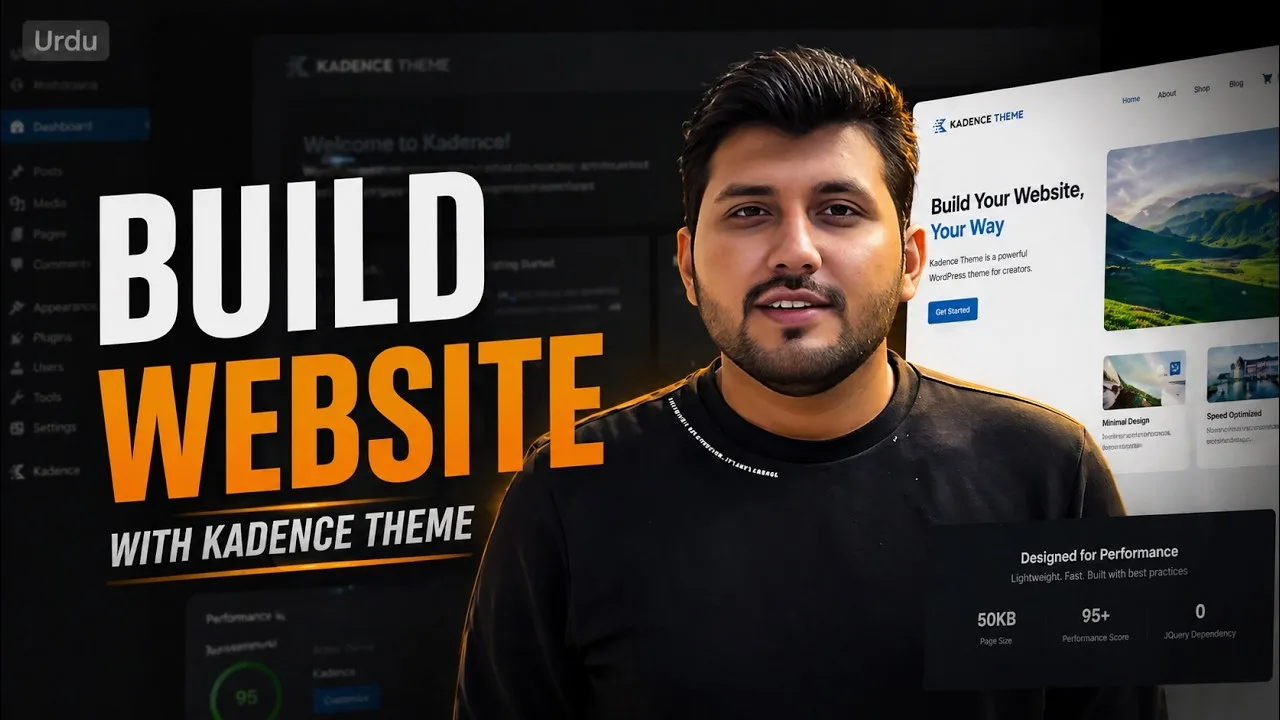
Install the free Kadence Theme, start from a template, then set up colours, buttons, typography, page layouts, the header and the footer.

Chapters
-
0:10
Introduction
-
1:28
Why Kadence Theme
-
7:56
Theme Installation
-
14:33
Starter Templates
-
24:17
Color Palette
-
52:59
Buttons Styling
-
58:09
Typography
-
1:04:15
Page/Post Settings
-
1:27:26
Sidebars
-
1:40:45
Scroll To Top
-
1:44:16
General Customization
-
1:55:52
Import/Export Settings
-
2:00:44
Header Customization
-
2:11:30
Mobile Navigation
-
2:17:34
Topbar
-
2:21:34
Social Icons
-
2:25:29
Transparent Header
-
2:28:19
Sticky Header
-
2:32:57
Dropdown Styling
-
2:34:42
Footer Customization
-
2:39:02
Footer Navigation
-
2:44:45
Copyright Section
-
2:48:12
Bonus
What you will be able to do
Before you start
About this lesson
Kadence is a free WordPress theme with a visual Customizer for colours, fonts, layouts, headers and footers. This lesson goes through it in the order you would use on a real site: install the theme, pick a starter template, then work through the Customizer one section at a time.
You set the colour palette, button styles and typography, adjust page and post layouts and sidebars, then build the header (mobile menu, top bar, social icons, transparent and sticky headers) and the footer.
It works best after the WordPress course, once you know your way around the dashboard.
It suits anyone who wants a fast, flexible theme without a page builder, from a first business site to client work. Everything shown here is in the free version of the theme. Next, the Kadence Blocks lesson shows how to build the content of each page, and the free WordPress Website Launch Checklist covers what to check before launch.
Tools and resources
- Kadence ThemeThe theme used throughout the lesson.(opens in a new tab)
- Kadence Blocks lessonThe next lesson: page layouts with Kadence Blocks.Open the lesson(opens in a new tab)
- WordPress Website Launch ChecklistFree 24-page PDF with 111 checks to run before a site goes live.Get the checklist(opens in a new tab)
Some links above are affiliate links. TutsVela may earn a commission at no extra cost to you. How we choose and label links.
Something in this lesson no longer matches what you see?